HEX Code from Image: Find and Copy Any Color
Click anywhere on an image to find its HEX color code. Copy the exact value in one click—free and processed locally in your browser.

Arrow keys move one pixel. Hold Shift to move ten pixels. Enter confirms. Scroll over the active magnifier to change its zoom from 4× to 16×. On touch screens, drag to preview and release to confirm.
HEX Color Code
Click the image to pick a color
- RGB
- —
- HSL
- —
Choose an image to create a palette.
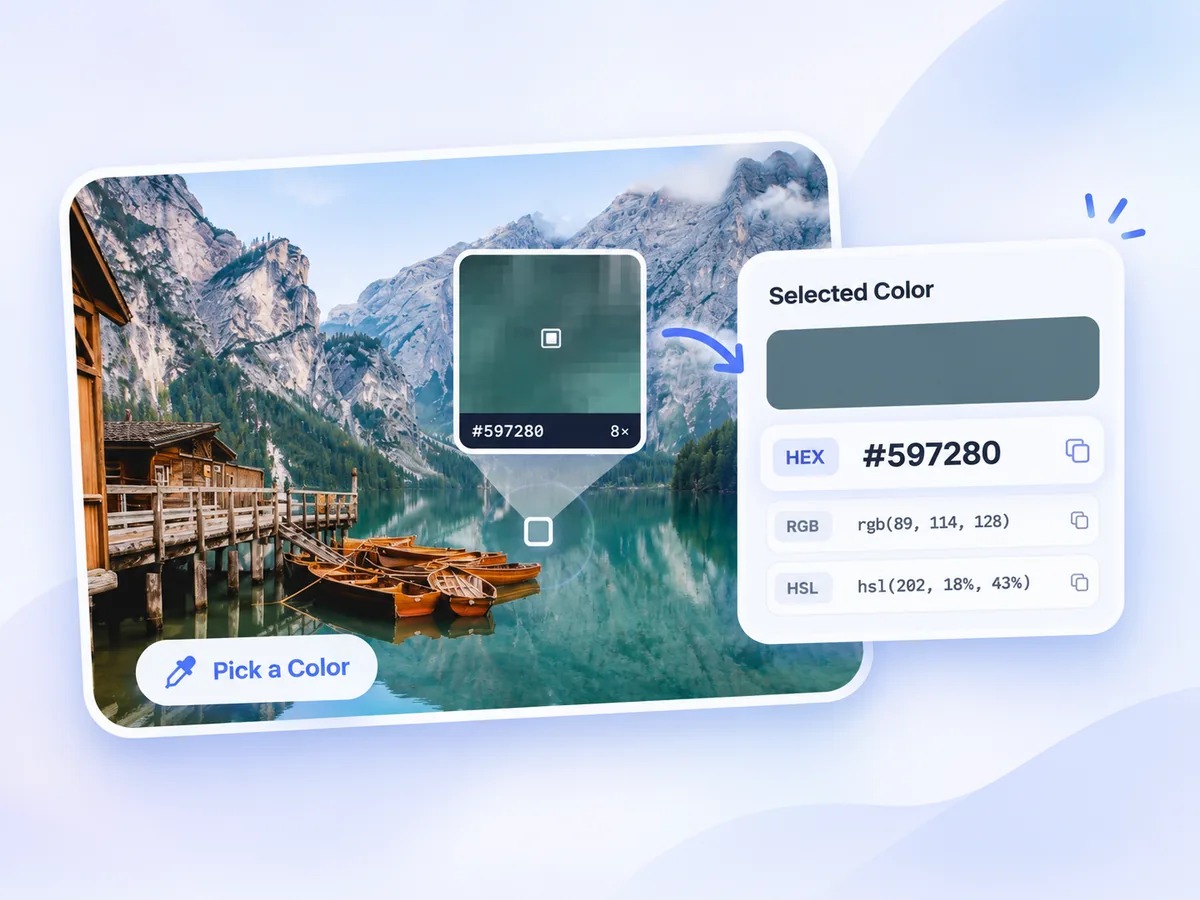
How to Find a HEX Code from an Image
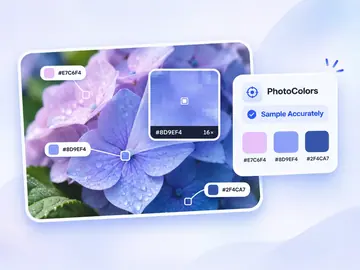
Finding a HEX color code from an image takes just a few steps. You can start with the sample image or choose your own photo, screenshot, illustration, or logo. PhotoColors lets you select a point in the image and see its color value without guessing the shade by eye.
- Choose an image. Use the sample image or add a file from your device.
- Pick a color. Click or tap the area you want to inspect. Zoom in to select a small detail more precisely.
- Read the HEX code. The selected color appears as a swatch with its HEX value.
- Copy and use it. Press Copy HEX and paste the value into your CSS, design file, or project notes.
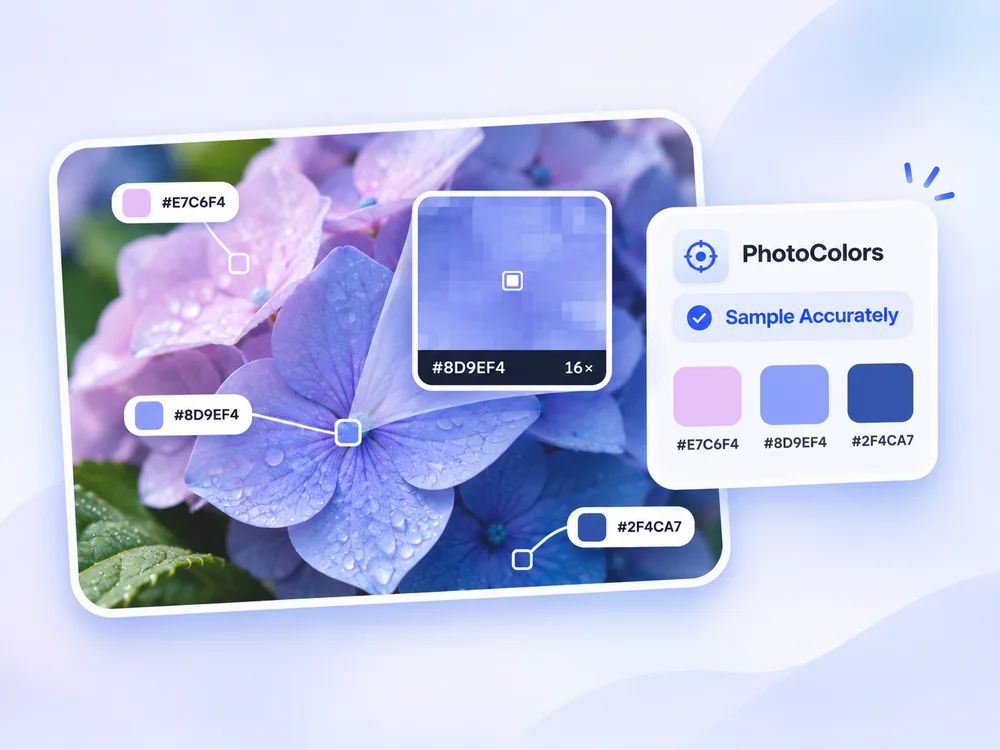
If the image contains gradients, shadows, or texture, nearby pixels can have different color values. Try a few points to find the exact shade you need.
What Is a HEX Color Code?
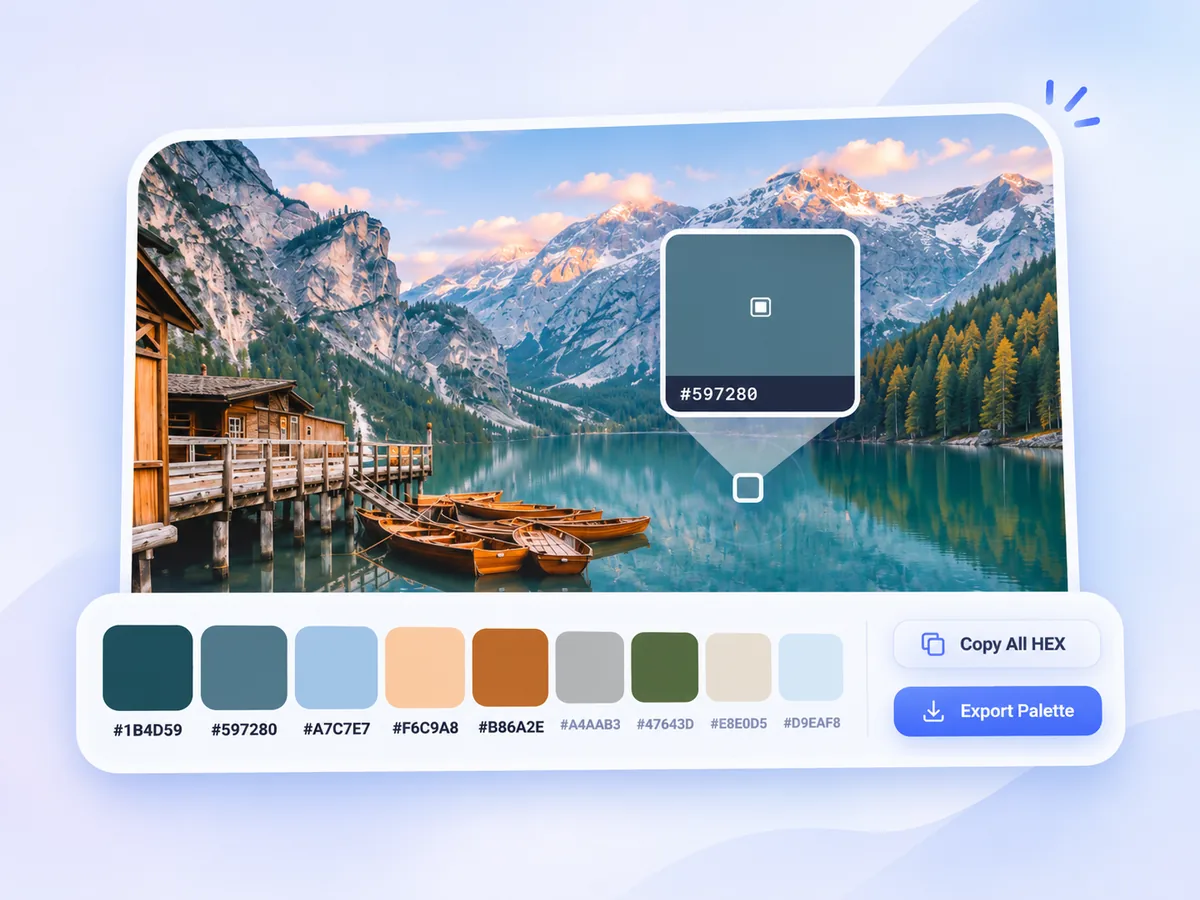
A HEX color code is a way to represent a color using hexadecimal characters. A common format is #RRGGBB: two characters describe red, two describe green, and two describe blue. For example, #FFFFFF represents white and #000000 represents black.
HEX codes are widely used in CSS and design tools because they are compact and easy to share. Instead of describing a shade as “a muted blue-gray,” you can copy a specific value from the image and use that same code wherever the color is needed.
The code describes the sampled pixel color. It does not identify an official brand color or guarantee that colors will look identical on every display.
Use HEX Codes in Your Designs
Web design: Sample a color from an image and use it for a button, border, background, or accent in CSS. For example, color: #597280; applies the selected shade to text.
Brand and graphic design: Pick a shade from a logo, product photo, or visual reference when creating supporting graphics. For consistent brand work, confirm the result against the brand’s official color specifications when they are available.
Presentations and content: Copy colors from a photograph or screenshot to coordinate headings, icons, and other visual elements. A few carefully selected shades often work better than guessing several similar colors.
PhotoColors processes image color picking locally in your browser. You can use the tool without creating an account or uploading your image to a remote color-picking service.
For RGB, HSL, and a broader color-picking workspace, use the Image Color Picker.
All Tools

Frequently Asked Questions
How do I find the HEX code of a color in an image?
Open an image, click the color you want to sample, and read the HEX code shown in the results panel. Select Copy HEX to copy it.
Can I get a HEX code from a screenshot?
Yes. Add your screenshot to PhotoColors, choose the pixel or area you want, and copy the displayed HEX value.
Why do similar pixels have different HEX codes?
An image may contain gradients, shadows, anti-aliasing, reflections, or compression artifacts. These can produce slightly different pixel values even when the areas look almost identical. Zoom in and sample a few nearby points if precision matters.
Are my images uploaded to a server?
PhotoColors processes image color picking locally in your browser. Your image does not need to be uploaded to a server to identify and copy a HEX value.