Make Photos Black and White
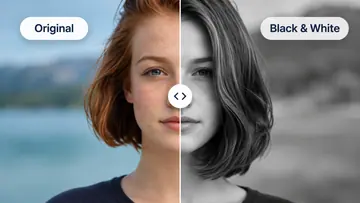
Use this black and white photo converter for soft grayscale portraits or crisp black ink drawings. Preview your image and download a copy in your browser.
or drop an image here · paste with ⌘V / Ctrl+V
JPG, JPEG, PNG, WebP, HEIC, HEIF, JFIF, TIFF · Up to 100 MB eachTry a sample
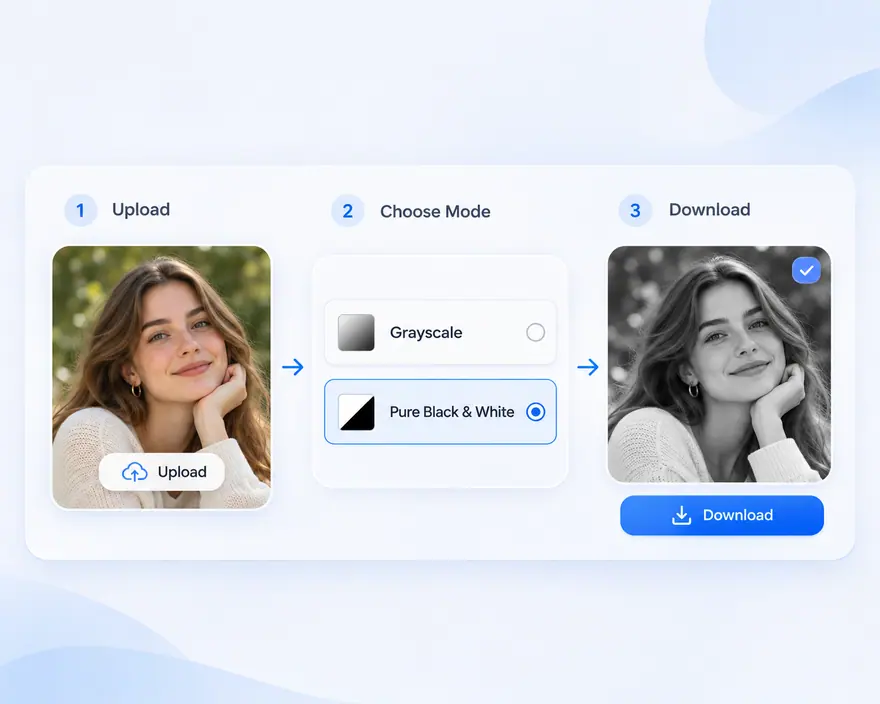
Convert a Photo to Black and White
This black and white photo converter starts in Grayscale to keep detail in the highlights and shadows.
- Upload a photo, drop it onto the page, or try a sample.
- Compare both previews on desktop. On mobile, hold the compare icon for the original and release for the result.
- Adjust brightness and contrast, choose an export format, and select Download.
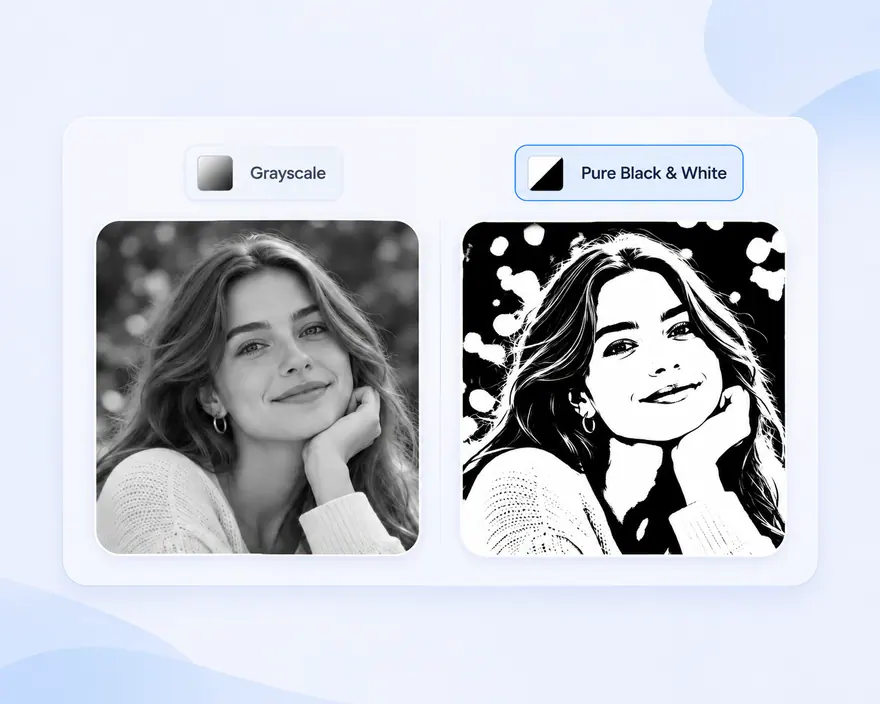
Grayscale Converter vs Pure Black & White
Grayscale keeps the shading in a portrait or screenshot. Colors with similar brightness can turn nearly the same gray. If a photo looks flat, increase Contrast slightly to bring out the differences between the remaining tones.
To convert an image to black and white for a stamp, signature, or line drawing, choose Pure Black & White. It turns every pixel black or white, so ink stands out against the paper.
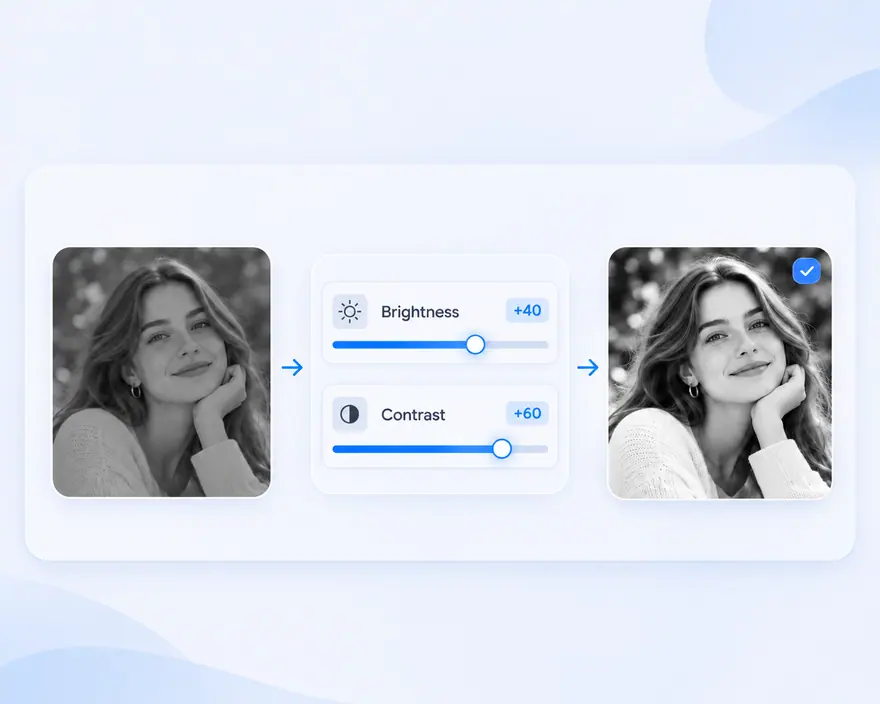
Brightness and Contrast
Use Brightness in the black and white photo editor to lighten a dim subject. Increase Contrast to bring out texture, or lower it if folds in dark fabric merge into one shadow.
In Pure Black & White mode, start with Threshold set to Auto. If faint handwriting disappears, raise the threshold until the strokes reappear. If shadows on the scanned paper turn into black patches, lower it.
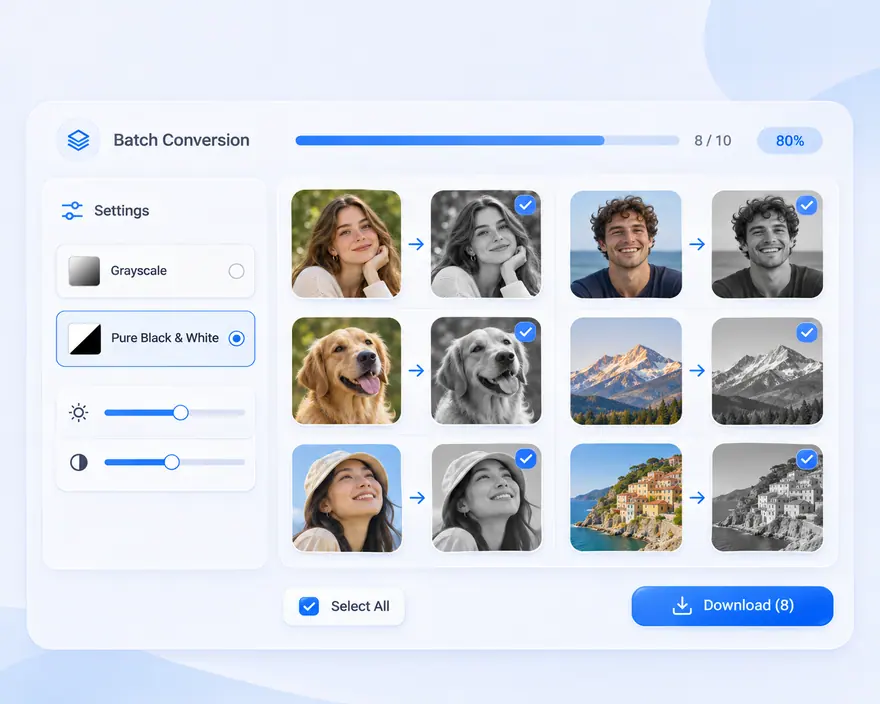
Batch Photo Conversion
Add several photos to the black and white converter, choose shared settings, and select Start Conversion. Set the overall look first. Changing the global mode or tone adjustments reprocesses completed photos and replaces their custom edits.
Open a completed photo to fine-tune it. Check individual photos to download a subset, or leave them unchecked to download all completed results. For multiple photos on mobile, choose individual files or a ZIP.
Supported Image Formats
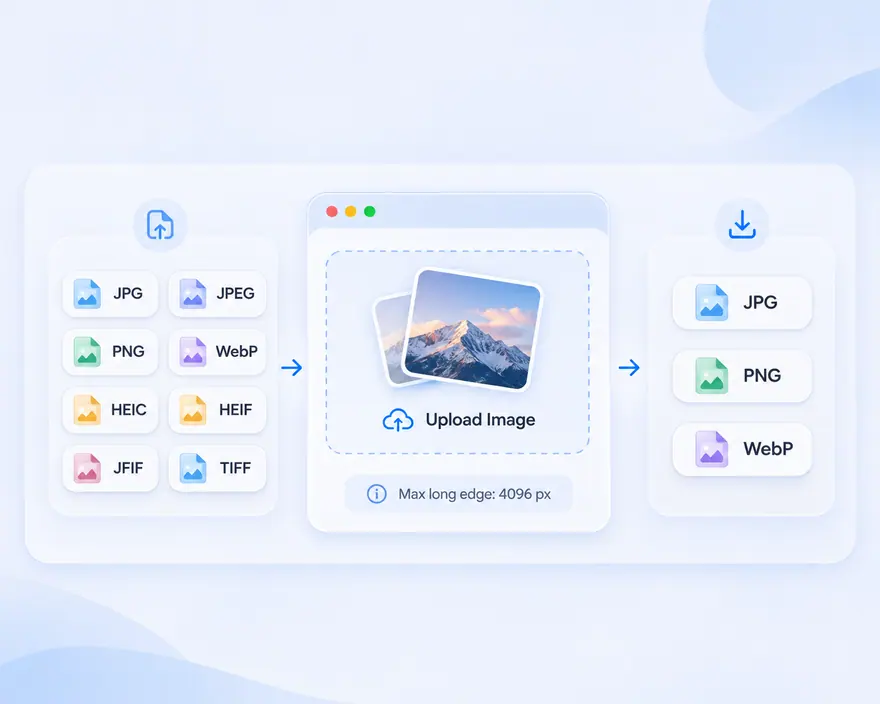
Open JPG (JPEG), PNG, WebP, HEIC, HEIF, JFIF, or TIFF files up to 100 MB each. You can open an iPhone HEIC photo directly and export a JPG for sharing. For multipage TIFFs, the converter uses only the first page.
Downloads keep the original proportions, up to 4096 pixels on the longer edge. For a signature with transparent areas, choose PNG or WebP to keep them, or JPG to fill them with white. Auto keeps WebP inputs as WebP and otherwise picks PNG for transparency or JPG for opaque images.
Your Photos Stay Yours
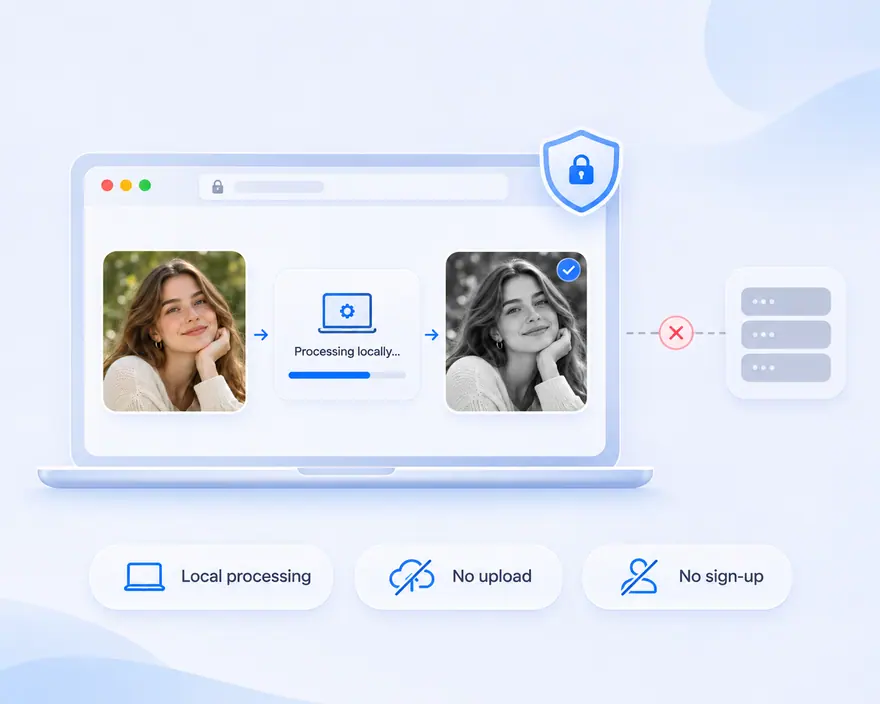
PhotoColors processes your image locally in your browser, from the first preview to the final export. You can work with a private photo or screenshot without uploading it to a server or creating an account.
Download any results you want to keep before replacing a photo, clearing a batch, or leaving the page. Each download is a separate file, so your original stays in color.
All Tools
Frequently Asked Questions
What is the difference between grayscale and pure black and white?
Grayscale preserves shades of gray for natural-looking photos with smooth tonal transitions. Pure Black & White uses only black and white pixels, creating a high-contrast effect without gray tones.
Are my photos uploaded to a server?
No. Your photos are processed locally in your browser. Images are not uploaded to our servers or stored in an online image library.
Is this black and white photo converter free to use?
Yes. PhotoColors is completely free, with no sign-up, no watermarks, and no ads. You can convert and download photos without paying.
What image formats are supported?
You can upload JPG, JPEG, PNG, WebP, HEIC, HEIF, JFIF, and TIFF images. The tool supports JPG, PNG, and WebP downloads.
What is the maximum image size?
You can upload images up to 100 MB each. Large images are automatically optimized in your browser, and the maximum output dimension is 4096 pixels on the longest side.
Can I convert multiple photos at once?
Yes. Batch Conversion lets you process multiple photos with shared settings, adjust individual results, and download selected images or the entire batch as a ZIP file.
What image formats can I download?
You can download black and white photos as JPG, PNG, or WebP. PNG and WebP support transparency, while JPG uses a white background for transparent areas.
Can I adjust brightness and contrast?
Yes. You can adjust brightness and contrast with real-time previews. Pure Black & White mode also includes a threshold control to adjust which areas become black or white.